In this SQL Server Management Studio tutorial, I will demonstrate the most easiest way on how to install SQL Server Management Studio (SSMS) in 4 easy steps with the help of Microsoft Web Platform installer. This tutorial will help you to perform the installation process of the SQL Server Instance with Management Studio (SSMS). –
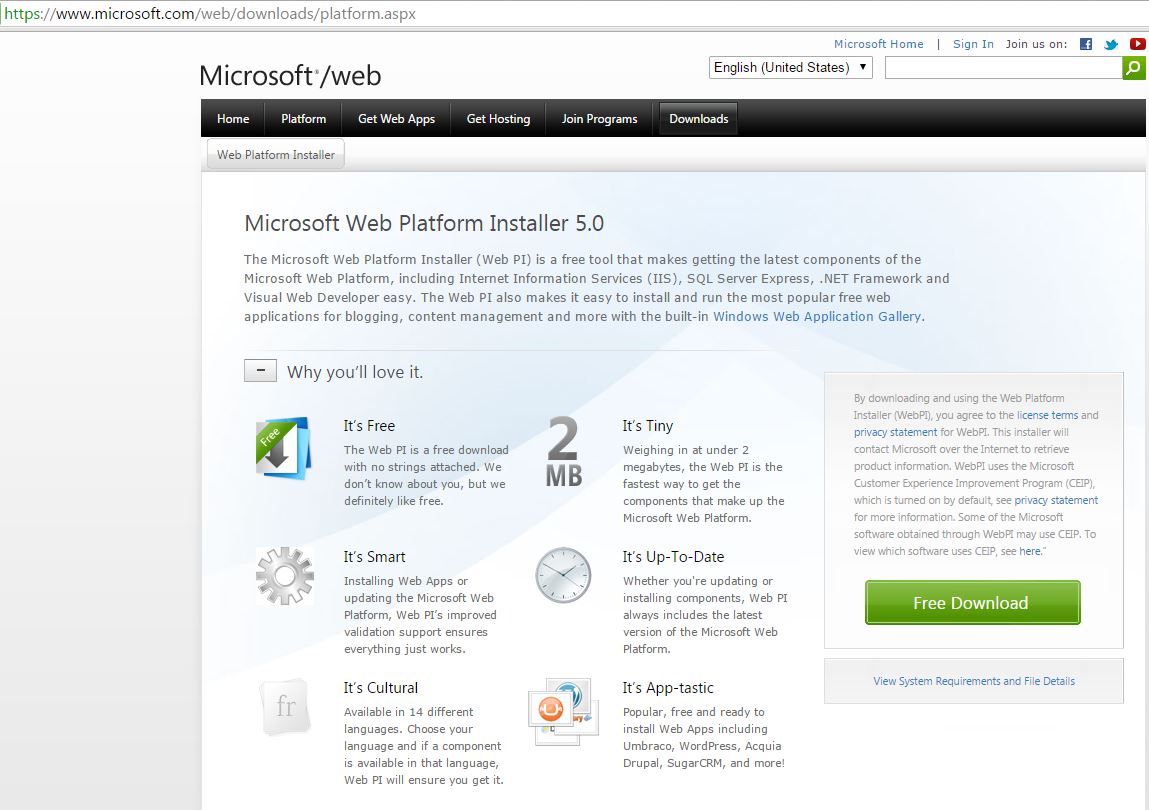
Step 1. ) Download the Microsoft Web Platform Installer version 5.0 , It is easily available for download by searching in google for Microsoft Web Platform installer and you will be on your way to download the application.
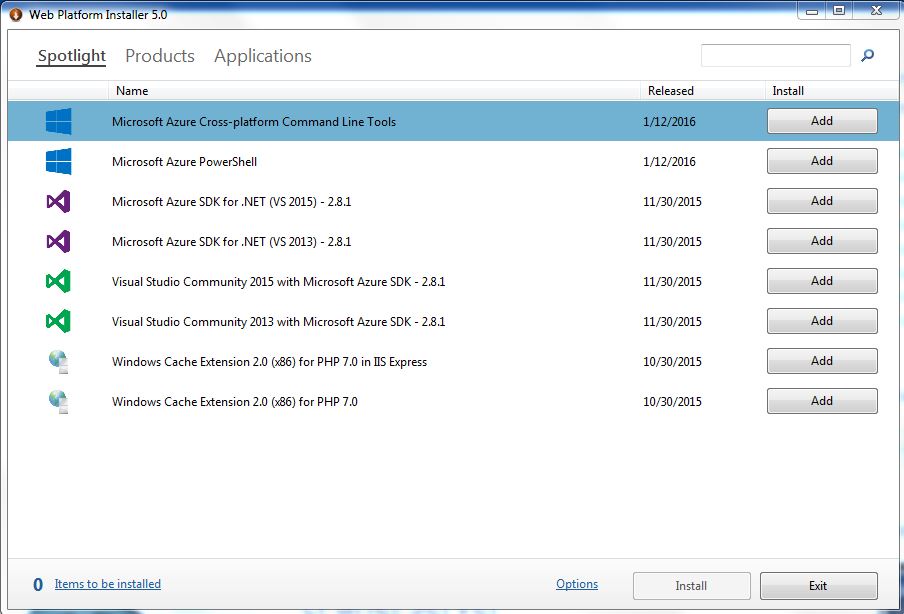
Step 2.) Run the Installer Application and you will see the list of applications that are ready for install.
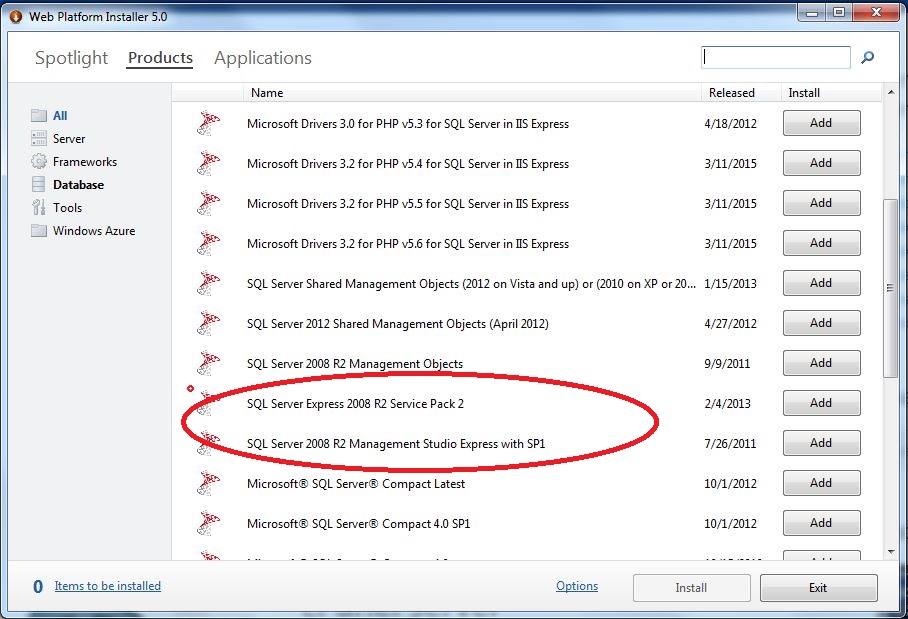
Step 3.) Click on Products and Choose SQL server express 2008 R2 Service Pack 2 and SQL server 2008 R2 management studio express with SP1 by clicking on Add button at the right side.
Step 4.) Notice the Items to be installed and you will see 2 items will be installed. 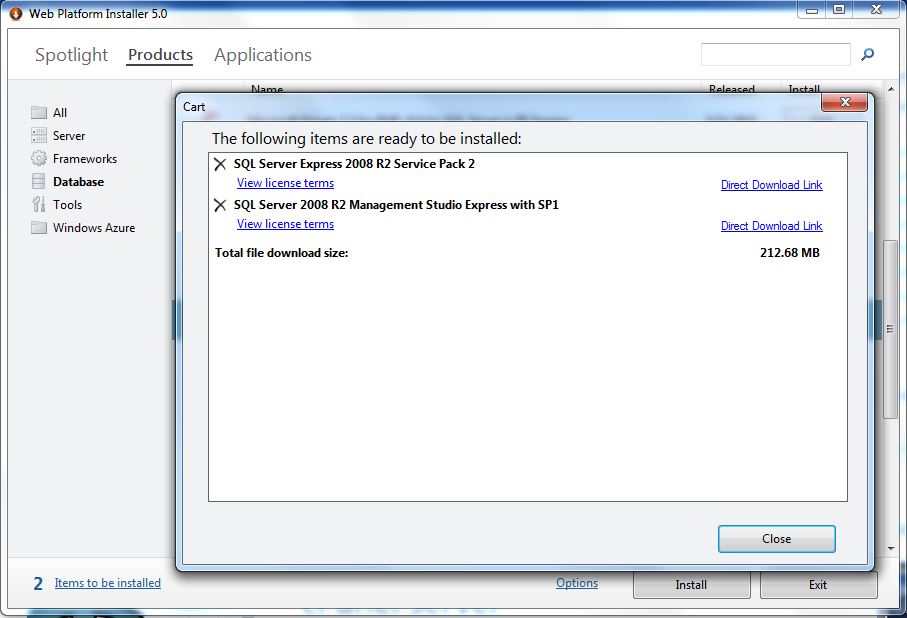
Step 5.) Proceed with the installation and configure the SQL server instance first, Rest all will be done automatically.
I hope this helps people who want to install SQL Server Management Studio in easy way without searching for the microsoft download URL and then keep on waiting for the download. I know I’ll be referring to my own post on this when I need to do it again 🙂